

Table of Contents
If you run a WordPress website, securing your WordPress admin login should be a top priority. Hackers frequently target the default /wp-login.php or /wp-admin page to launch brute-force attacks and gain unauthorized access. Using a free WordPress login security plugin can help protect your site and provide peace of mind.
One of the best tools for this purpose is Shield WP Admin. This lightweight yet powerful plugin adds extra layers of protection to your admin panel without slowing down your site.
We will explain why Shield WP Admin is among the best free WordPress login security plugins, outline its features and benefits, and show you how to download and install this plugin for free to protect your website.
Why Do You Need a WordPress Admin Security Plugin?
WordPress powers more than 40% of all websites, making it a common target for hackers. The WordPress admin page is often the first point of attack for brute-force bots that try thousands of password combinations until they succeed.
Here are the main risks if you don’t secure your admin login:
- Brute-force attacks: Hackers try unlimited username-password combinations.
- Unauthorized access: If attackers guess your login, they can take full control of your site.
- Spam and bots: Automated scripts keep targeting your site, consuming server resources.
- Exploits through XML-RPC: Attackers can misuse this WordPress feature for attacks.
That is why it is essential to use free plugins to protect the WordPress admin area. Shield WP Admin provides this protection with simple yet effective tools.
What is Shield WP Admin?
Shield WP Admin is a WordPress admin login security plugin that protect your site from common threats. Unlike larger security plugins that may slow down your site, this plugin is lightweight and easy for beginners to use.
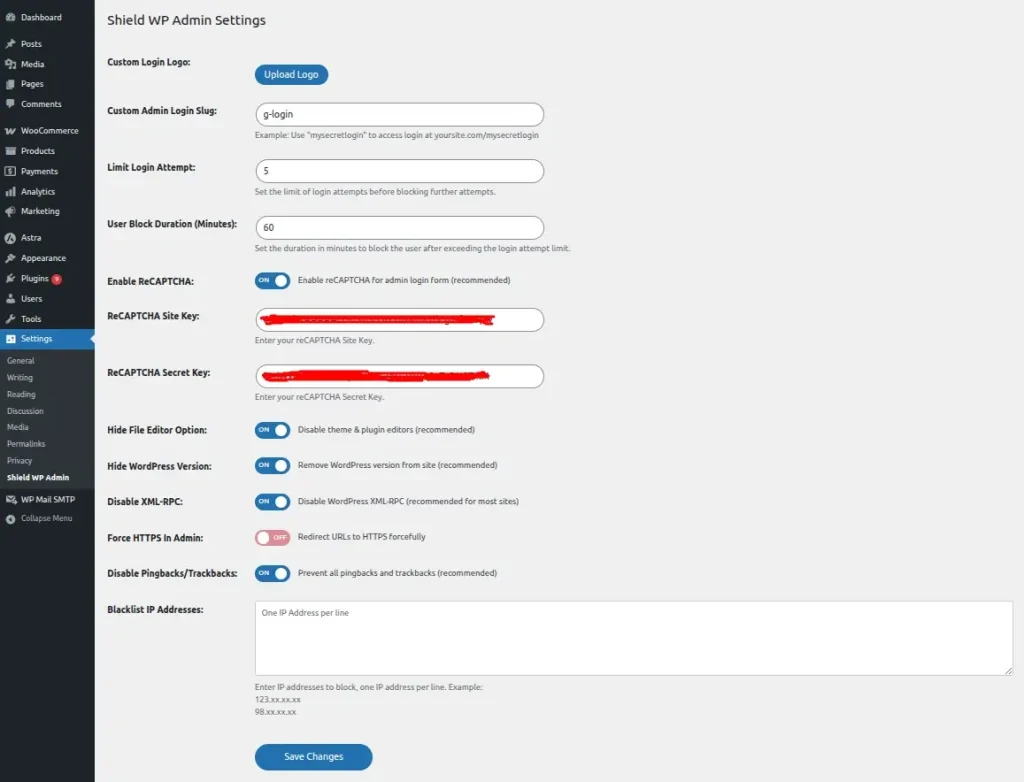
With Shield WP Admin, you can:
- Hide or change the default login URL.
- Limit login attempts to block brute-force attacks.
- Add Google reCAPTCHA for bot protection.
- Disable unused or risky features like XML-RPC.
- Hide sensitive information like your WordPress version.
It is the perfect solution if you are looking for a secure, easy-to-use WordPress wp-admin plugin available for free download.
Key Features of Shield WP Admin
Here’s a detailed look at the main features of Shield WP Admin:
1. Custom Admin Login URL
The default WordPress login page is always /wp-login.php, which hackers know, making it an easy target. Shield WP Admin allows you to change your login URL to something unique, such as mysecretlogin. This hides your login page from bots and attackers.
2. Limit Login Attempts
Brute-force attacks rely on unlimited password attempts. With this plugin, you can limit failed login attempts and block suspicious users after a specified number of tries.
3. Google reCAPTCHA Integration
Shield WP Admin allows you to add Google reCAPTCHA to your login form, blocking automated bots and ensuring that only real humans can attempt to log in.
4. Disable XML-RPC
XML-RPC is frequently exploited by attackers to launch DDoS or brute-force attacks. You can disable XML-RPC completely with one click, reducing vulnerabilities.
5. Disable File Editor
Hackers who access your admin panel often attempt to modify theme or plugin files. Shield WP Admin allows you to disable the file editor in your WordPress dashboard for added security.
6. Hide WordPress Version
Displaying your WordPress version in the source code increases your site’s vulnerability. This plugin hides your version to reduce the risk of targeted attacks.
7. Force HTTPS Redirection
If your website has an SSL certificate, Shield WP Admin ensures that all login attempts use HTTPS to provide secure connections.
8. Disable Pingbacks & Trackbacks
Pingbacks and trackbacks can be misused for spam or DDoS attacks. This feature allows you to disable them completely.
9. IP Blacklisting
Shield WP Admin allows you to block specific IP addresses directly from your dashboard. This is useful if you notice repeated attacks from certain IP addresses.
10. Admin Login Form Logo Change
Want to brand your login page? The plugin allows you to replace the WordPress logo on your login form with your own logo.
Why Choose Shield WP Admin Over Other Plugins?
There are many WordPress login protection plugins free on the market, but Shield WP Admin stands out because:
- Lightweight: It doesn’t slow down your site.
- Easy to Use: Even beginners can configure it.
- Flexible: You can enable or disable individual features.
- Free Download: All core features are available for free.
Whether you are a developer managing multiple sites or a blogger running your first website, Shield WP Admin is a smart choice for securing your WordPress admin panel.
How to Download and Install Shield WP Admin for Free
You can easily download free WordPress login security plugins from the official WordPress plugin repository. Here is how to install Shield WP Admin:
- Go to your WordPress Dashboard.
- Click on Plugins > Add New.
- Search for Shield WP Admin.
- Click Install Now, then Activate.
- Go to the plugin settings page to configure features like login URL, reCAPTCHA, and IP blocking.
Now your WordPress admin panel protection plugins download and setup is complete.
Conclusion
Protecting your WordPress wp-admin area is essential for your website’s security. With the rise of brute-force and bot attacks, relying solely on strong passwords is not sufficient.
A free security plugin for WordPress, such as Shield WP Admin, provides advanced protection without added complexity. You can download and install WordPress login security plugins for free, and in just minutes, secure your site with features like a custom login URL, reCAPTCHA, and IP blacklisting.
If you are looking for the best free WordPress login security plugin, Shield WP Admin is an excellent choice. Lightweight, easy to use, and reliable, this plugin ensures your WordPress admin area remains protected at all times.
👉 Download Shield WP Admin here and secure your WordPress admin today.
FAQs
How can I access the login page after changing the URL?
Bookmark or remember your new login URL. If you forget it, you can disable the plugin through FTP or your hosting control panel.
Will Shield WP Admin conflict with other security plugins?
It works well with most plugins, but avoid using multiple plugins with similar features, such as multiple reCAPTCHAs.
Can I enable only specific features?
Yes, you can turn features on or off as per your needs.
What is the default login slug after activation?
The default slug is mysecretlogin.