

Table of Contents
Sending push notifications from Salesforce to mobile applications can be challenging due to Salesforce’s limitations. By default, Salesforce requires a Connected App to send notifications, but this only allows notifications to be sent to Salesforce users, not to external contacts or leads.
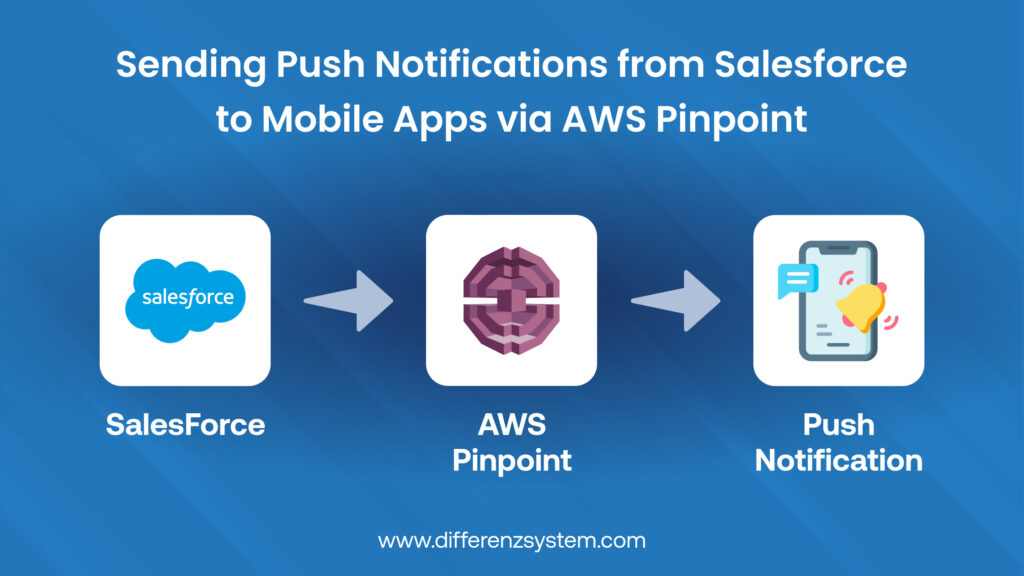
To address this limitation, we use AWS Pinpoint as an intermediary service between Salesforce and mobile apps. AWS Pinpoint provides scalable, secure, and efficient push notifications to Android (FCM) and iOS (APNs) devices.
This guide outlines the step-by-step process for integrating Salesforce with AWS Pinpoint and sending push notifications successfully.
Why Use AWS Pinpoint for Salesforce Push Notifications?
Salesforce’s built-in push notification feature has several limitations:
- It requires a Connected App, limiting notifications to Salesforce users only.
- It does not support push notifications for external contacts, leads, or customers.
- It lacks flexibility in segmentation, automation, and targeting.
Key Benefits of AWS Pinpoint
- No Connected App Required: Send push notifications to external contacts, leads, and customers.
- Multi-Platform Support: Compatible with Android (FCM) and iOS (APNs).
- Scalable and Cost-Effective: Efficiently handle millions of notifications.
- Custom Targeting: Personalize notifications based on customer preferences and behavior.
- Real-Time Analytics: Track delivery rates, open rates, and engagement.
- Seamless API Integration: Salesforce triggers notifications programmatically without complex configurations.
Step-by-Step Guide: Sending Push Notifications from Salesforce to Mobile Apps via AWS Pinpoint
Step 1: Set Up AWS Pinpoint for Push Notifications
1. Log in to AWS Console and navigate to Amazon Pinpoint.
2. Create a New Project (or select an existing one).
3. Enable Push Notification Channels:
- Configure Firebase Cloud Messaging (FCM) for Android.
- Configure Apple Push Notification Service (APNs) for iOS.
4. Set Up Firebase for Android:
- Go to Firebase Console → Select your project → Project Settings → Service Accounts.
- Generate and download the JSON private key file.
5. Set Up APNs for iOS:
- Obtain Team ID, Auth Key, Bundle ID, and .p8 Certificate from Apple Developer Console.
6. Retrieve AWS Pinpoint Application ID – This ID will be used for API calls in Salesforce.
Step 2: Configure Salesforce to Call AWS Pinpoint API
1. Enable External API Calls in Salesforce
- Go to Salesforce Setup → Remote Site Settings.
- Add AWS Pinpoint API URL as a trusted remote site.
2. Create an Apex Class to Send Push Notifications
- Salesforce will use Apex Code to call the AWS Pinpoint API and send push notifications.
AWS Pinpoint API Endpoint.
https://pinpoint.{aws_region}.amazonaws.com/v1/apps/{pinpoint_project_id}/messages
- {aws_region} → Your AWS region (e.g., us-east-1).
- {pinpoint_project_id} → Your AWS Pinpoint application ID.
API Payload Structure
{
    "MessageConfiguration": {
        "GCMMessage": {
            "Body": "Hello, this is a push notification!",
            "Title": "Notification Title",
            "Action": "OPEN_APP",
            "Data": { "key": "value" }
        },
        "APNSMessage": {
            "Body": "Hello, this is a push notification!",
            "Title": "Notification Title",
            "Action": "OPEN_APP",
            "Data": { "key": "value" }
        }
    },

    "Addresses": {
        "deviceToken": { "ChannelType": "APNS" }
    }
}
Apex Code for Sending Push Notifications
public class AWSNotificationService {

    public static String generateSignature(String method, String service, String host, String region,
                                           String endpoint, String requestParameters, String payload) {

        String amzDate = Datetime.now().formatGMT('yyyyMMdd\'T\'HHmmss\'Z\'');
        String dateStamp = Datetime.now().formatGMT('yyyyMMdd');
        String canonicalUri = endpoint;
        String canonicalQueryString = requestParameters;
        String canonicalHeaders = 'host:' + host + '\n' + 'x-amz-date:' + amzDate + '\n';
        String signedHeaders = 'host;x-amz-date';
        String payloadHash = hash(payload);

        String canonicalRequest = method + '\n' + canonicalUri + '\n' + canonicalQueryString + '\n' +
                                  canonicalHeaders + '\n' + signedHeaders + '\n' + payloadHash;

        String algorithm = 'AWS4-HMAC-SHA256';
        String credentialScope = dateStamp + '/' + region + '/' + service + '/aws4_request';
        String stringToSign = algorithm + '\n' + amzDate + '\n' + credentialScope + '\n' + hash(canonicalRequest);

        Blob signingKey = getSignatureKey(SECRET_KEY, dateStamp, region, service);
        String signature = hmacSHA256(stringToSign, signingKey);

        String authorizationHeader = algorithm + ' ' + 'Credential=' + ACCESS_KEY + '/' + credentialScope +
                                     ', SignedHeaders=' + signedHeaders + ', Signature=' + signature;
        return authorizationHeader;
    }

    @future(callout = true)
    public static void sendPushNotification(String message) {

        try {
            String method = 'POST';
            String service = 'mobiletargeting';
            String host = 'pinpoint.us-east-1.amazonaws.com';
            String region = 'us-east-1';
            String endpoint = '/v1/apps/YOUR_APP_ID/messages';
            String requestParameters = '';
            String payload = message;

            String authorizationHeader = generateSignature(method, service, host, region, endpoint, requestParameters, payload);

            HttpRequest req = new HttpRequest();
            req.setEndpoint('https://' + host + endpoint);
            req.setMethod(method);
            req.setHeader('Authorization', authorizationHeader);
            req.setHeader('x-amz-date', Datetime.now().formatGMT('yyyyMMdd\'T\'HHmmss\'Z\''));
            req.setHeader('Content-Type', 'application/json');
            req.setBody(payload);

            Http http = new Http();
            HttpResponse res = http.send(req);

            System.debug(res.getStatusCode());
            System.debug(res.getStatus());
            System.debug(res.getBody());

        } catch (Exception e) {
            System.debug(e.getMessage());
        }
    }
}
Step 3: Configure Mobile Apps to Receive Push Notifications
- For Android: Follow AWS Amplify Android Push Notification Guide.
- For iOS: Follow AWS Amplify iOS Push Notification Guide.
Conclusion
By integrating AWS Pinpoint, businesses can overcome Salesforce’s limitations and send push notifications to contacts, leads, and customers. This scalable, automated approach improves user engagement and communication.
- Salesforce cannot send push notifications directly to external users.
- AWS Pinpoint acts as a bridge to deliver notifications to mobile apps.
- Multi-platform support enables seamless push notifications for both Android and iOS.
- Real-time tracking and analytics enhance campaign effectiveness.
Frequently Asked Questions
1. Can I send push notifications from Salesforce without AWS Pinpoint?
Salesforce supports push notifications only for users within the Salesforce platform, while AWS Pinpoint enables notifications to be sent to external users, such as customers or leads.
2. How secure is AWS Pinpoint for sending push notifications?
AWS Pinpoint uses secure authentication, encryption, and access control to ensure safe communication between Salesforce and mobile applications.
3. What happens if a push notification fails to deliver?
AWS Pinpoint provides real-time analytics and logs errors for failed notifications, allowing you to monitor metrics and troubleshoot delivery issues.
4. Is AWS Pinpoint cost effective for businesses?
Yes, AWS Pinpoint offers reliable usage-based pricing. It is a more affordable solution than building an in-house notification system.
5. How do I integrate AWS Pinpoint with a mobile app?
You need to configure Firebase Cloud Messaging (FCM) for Android and Apple Push Notification Service (APNs) for iOS. AWS Pinpoint then connects to these services to send push notifications.