


Table of Contents
Throughout my journey as a developer, I’ve realized the importance of effective data visualization, especially in Salesforce environments. Chart.js, a powerful and versatile JavaScript library, enables developers to create visually appealing and interactive charts that enhance data-driven decision-making.
In this guide, I’ll cover the basics of Chart.js, explain how to integrate it with Salesforce, and show you how to use it to enhance data presentation in your CRM.
What is Chart.js?
Chart.js is a popular open-source JavaScript library that allows developers to create simple, flexible charts with minimal effort. It supports various chart types, including:
- Bar Charts: Ideal for comparing different data categories.
- Line Charts: Perfect for visualizing trends over time.
- Pie and Doughnut Charts: Great for displaying proportional data.
- Radar Charts: Useful for comparing multiple quantitative variables.
- Bubble and Scatter Charts: Used for statistical analysis and illustrating relationships between variables.
Since Chart.js is lightweight and responsive, it is a preferred option for Salesforce developers looking to enhance their dashboards with dynamic, interactive data visuals.
Why use Chart.js with Salesforce?
Salesforce is a powerful CRM platform that helps businesses manage customer relationships and data. However, its reporting tools can sometimes be limited in interactivity and customization. Integrating Chart.js with Salesforce enables developers to:
- Enhance data presentation by creating visually engaging custom dashboards.
- Improve decision-making by displaying data in an easy-to-understand format.
- Customize charts to meet specific business needs.
- Ensure real-time updates by dynamically syncing Salesforce records with Chart.js components.
By combining the power of Salesforce with the flexibility of Chart.js, you can create custom dashboards and reports that are visually appealing and easy to understand.
Getting Started with Setting Up Chart.js in a Salesforce Environment
1. Setting Up Your Environment
Before integrating Chart.js, make sure you have a Salesforce Developer Edition or a Salesforce sandbox account where you can create and test your components.
2. Installing Chart.js
To use Chart.js in Salesforce, include its library in your Lightning Web Component (LWC). You can do this by:
- Downloading the Chart.js file (Open link -> Right Click -> Save As) and uploading it as a static resource in Salesforce.
- Alternatively, obtaining the library from the Chart.js website and saving it as
ChartJsin your Salesforce static resources.
3. Creating a Lightning Web Component
Once Chart.js is installed, the next step is to create a Lightning Web Component that integrates it. Below is a sample implementation.
// chart.js

import {LightningElement, api, track} from 'lwc';
import chartjs from '@salesforce/resourceUrl/ChartJs';
import {loadScript} from 'lightning/platformResourceLoader';
import {ShowToastEvent} from 'lightning/platformShowToastEvent';

export default class Chart extends LightningElement {
 @api loaderVariant = 'base';
 @api chartConfig;

 @track isChartJsInitialized;
 renderedCallback() {
  if (this.isChartJsInitialized) {
   return;
  }
  // load static resources.
  Promise.all([loadScript(this, chartjs)])
   .then(() => {
    this.isChartJsInitialized = true;
    const ctx = this.template.querySelector('canvas.barChart').getContext('2d');
    this.chart = new window.Chart(ctx, JSON.parse(JSON.stringify(this.chartConfig)));
    this.chart.canvas.parentNode.style.height = 'auto';
    this.chart.canvas.parentNode.style.width = '100%';
   })
   .catch(error => {
    this.dispatchEvent(
     new ShowToastEvent({
      title: 'Error loading ChartJS',
      message: error.message,
      variant: 'error',
     })
    );
   });
 }
}
In the above code, I have declared two @api attributes in the chart component
- loaderVariant: Used to set the loader variant from the parent component.
- chartConfig: Used to pass the chart settings and data from the parent component, allowing this component to be reused for different charts.
<!-- chart.html -->

<template>

   <div class="slds-p-around_small slds-grid slds-grid--vertical-align-center slds-grid--align-center">

     <canvas class="barChart" lwc:dom="manual"></canvas>
     <div if:false={isChartJsInitialized} class="slds-col--padded slds-size--1-of-1">

     <lightning-spinner alternative-text="Loading" size="medium" variant={loaderVariant}></lightning-spinner>

     </div>
    </div>

</template>
4. Fetching Data from Salesforce
Now, create an apex class to fetch the Opportunity Data.
//chartdemo.cls

public class chartdemo
{
    @AuraEnabled(cacheable=true)
    public static List<AggregateResult> getOpportunities()
    {
       return [SELECT SUM(ExpectedRevenue) expectRevenue, SUM(Amount) amount, StageName stage

       FROM Opportunity WHERE StageName NOT IN ('Closed Won') GROUP BY StageName LIMIT 20];

    }
 }
5. Integrating Data with the Chart Component
chartDemo.js (JavaScript Controller) Create another Lightning Web Component, give it name as per your reference
// chartDemo.js

import { LightningElement, wire } from 'lwc';
import getOpportunities from '@salesforce/apex/chartdemo.getOpportunities';

export default class ChartDemo extends LightningElement {
chartConfiguration;
    @wire(getOpportunities)
    getOpportunities({ error, data }) {
        if (error) {
            this.error = error;
            this.chartConfiguration = undefined;
        } else if (data) {
            let chartAmtData = [];
            let chartRevData = [];
            let chartLabel = [];
            data.forEach(opp => {
                chartAmtData.push(opp.amount);
                chartRevData.push(opp.expectRevenue);
                chartLabel.push(opp.stage);
            });
            this.chartConfiguration = {
                type: 'bar',
                data: {
                    datasets: [{
                        label: 'Amount',
                        backgroundColor: "green",
                        data: chartAmtData,
                    },{
                        label: 'Expected Revenue',
                        backgroundColor: "orange",
                        data: chartRevData,
                    },],
                    labels: chartLabel,
                },
                options: {},
            };
            console.log('data => ', data);
            this.error = undefined;
        }
    }
}
<!-- chartDemo.html -->
<template>
<lightning-card title="Open Opportunities" icon-name="utility:chart">
<template if:true={chartConfiguration}>
<c-chart chart-config={chartConfiguration}></c-chart>
</template>
</lightning-card>
</template>In the HTML we have called the chart component and set the chart-config parameter.
6. Adding the Component to a Lightning Page
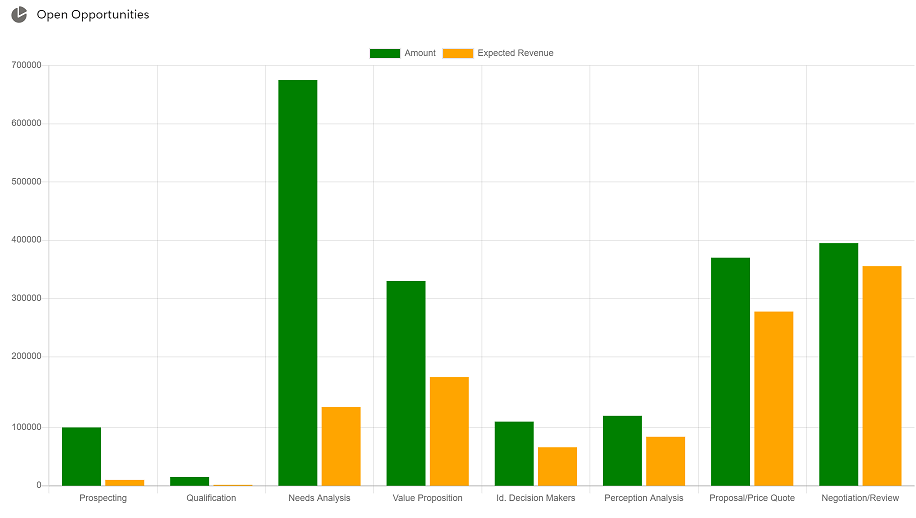
Finally, add your new component to a Lightning page to view the chart in action. Edit a Lightning page and drag your component onto the page.
Output:-
Conclusion
Integrating Chart.js with Salesforce gives businesses a powerful way to visualize and analyze data. Whether tracking sales performance, monitoring customer satisfaction, or generating real-time dashboards, Chart.js turns raw Salesforce data into actionable insights that are easy to interpret and share with your team.
Data visualization is a powerful tool that can greatly enhance the decision-making process in any organization.
With this hands-on guide, you can use Chart.js to create dynamic charts in your Salesforce applications and enhance your CRM data visualization.
FAQs
1. Can I use Chart.js with Salesforce reports?
Yes, you can extract report data using Apex and visualize it using Chart.js.
2. Does Chart.js support real-time updates?
Chart.js does not have built-in real-time support, but you can manually update the chart when Salesforce data changes.
3. What types of charts are supported?
Chart.js supports bar, line, pie, radar, scatter, and more chart types, making it highly flexible for data visualization.
4. How do I deploy this component?
You can add the LWC to a Lightning App Page or embed it in a Salesforce Lightning Record Page.